Sunday, January 25, 2009

Batch Management

Batch management is used to identify one lot of production from another. This helps in tracking the lots during their life-cycle, as well as recording the unique characteristics of each lot. For instance, the expiry date or date of production of 2 lots can be different.

Batch Management can be applied to both process and discrete manufacturing industry. It is tightly integrated with all business processes viz., procurement, manufacturing, sales and inventory management. Some of the prominent functionalities supported as part of standard SAP batch management process are as under:
• Batch Specification / Classification - Classes can be defined for a batch and characteristic values can be entered accordingly.
• Auto Batch Creation – Batches can be configured to be automatically created as part of certain standard SAP processes.
• Batch Determination - This provides an automatic batch search technique based on pre-defined criteria. It is useful during Goods Issue and SAP condition technique is used to configure this. It also helps in searching for batches using specifications.
• Batch Status - it specifies whether the batch is active, can be used further etc.

Configuration Steps:

Step 1 – Click on the link below “specify batch level and activate status management”.


The first setting is, at what level the batch number should be unique. The default setting is as below,

The advantage of having batch unique at material level is, the batch number remains consistent during stock transfer between different plants. Next the batch status management is activated,

The node “initial status of a new batch” allows to set the status as “restricted” when a new batch is created. If there is no check mark against “initial status” as shown in the figure below, the stock remains unrestricted. This setting is at material type level. The check box may not be required to be set in case Quality Management is active. With QM, the stocks are anyways inspected, so putting them into restricted would increase one more step of bringing them from restricted to quality inspection stock.

The node “plants with batch status management” will be required if batch level is at plant level.
Step 2 – Activate batch number assignmentThe batch number can be internally assigned or externally assignment. Depending upon the business requirement, it can be configured.
Step 3 – Creation of new batchesThe new batches can be created automatically by the system or manually vide transaction code MSC1N. To create batches automatically during certain transactions / movement types, follow the path to the following node in configuration:

The node "define batch creation for production order / process order", allows you to configure for a combination of plant and production scheduling profile. It specifies whether a batch is created automatically at production order creation or production order release or no batch creation at all. Similarly “batch creation for goods movement” controls the batch creation for each movement type. The next node controls the batch creation for each material type, as shown below.

Step 4 – Batch ValuationThis step is used to maintain batch characteristic values while creating batches in the background (automatically) or manually in the foreground. Batch characteristics are also useful when batch determination functionality is required during goods issue. The batch anyways inherits the material characteristics / class for which it is created.

Step 5 – Batch DeterminationIt uses the standard sap access sequence search strategy. Over here, strategy type is like condition type in pricing. The following screen shows how to set it up.

Click on the above node and the list of existing strategy types will appear.
A new strategy type can be created here, preferably a copy of one of the existing strategy type. These strategy types are then used in “Batch search procedure definition” as shown below.
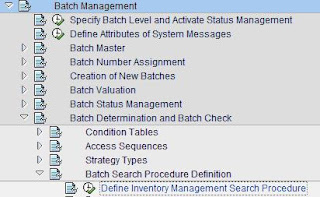
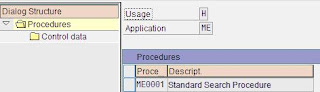
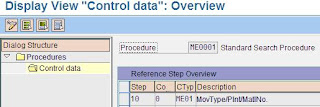

The batch search procedure configured above, now needs to be allocated to IM movement types.
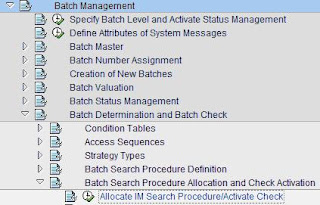
Step 6 – Define Sort RulesThis step determines, as the name suggests, a rule is created to sort the batches during batch determination. This sorting happens based on the characteristics defined for the batch.
Step 7 – Master Data SettingIn material master, “batch management” indicatory needs to be set if the material is to be handled in batches.
The condition type / strategy type for batch determination needs to be maintained. The T Code for the same is MBC1.
The key combination displayed above (for T Code MBC1) is as per the access sequence configured under “batch determination and batch check”.
Shelf Life Expiration Date Check:
This can be enabled as per the node below.
The system allows the date check to be activated at Plant Level and at Movement Type Level.

Logistics Invoice Verification

Logistics invoice verification is the final step in procure to pay cycle. It begins with the vendor submitting the invoice for the goods sold. The Accounts Payable group, after receiving the invoice from the vendor, enters it in SAP. Based on the Purchase Order details, Goods Receipt, invoice data and configuration settings, the system prompts the user with messages. The user then takes one of the following action:
• Park / Save the invoice
• Post the invoice

Park / Save the invoice allows user to make changes later on, so that it can be posted. Once posted, the invoice is released to accounting for payment. Under certain circumstances, depending upon the configuration, the invoice can get blocked upon posting. It means that until the block is removed from the invoice document, it will not be released to accounting for payment. There is an alternative way to carry out Logistics Invoice Verification. The process is called Automatic Settlement or Evaluated Receipt Settlement (ERS). In this process, instead of vendor submitting the invoice for payment, the company creates an invoice document (based on the purchase order and goods receipt). This document is then used as the basis for payment by the accounting team.

Frequently used transactions:
MIRO - Enter Invoice
MIR7 - Park Invoice
MIR4 - Display Invoice Document
MR8M - Cancel Invoice Document
MRBR - Release Blocked Invoices
MIR6 - Invoice Overview Automatic Settlement
MRRL - Evaluated Receipt Settlement (ERS)

Invoice BlockingInvoice is blocked either by the system automatically or manually. The reason for blocking is usually a high variance between the PO data and Goods Receipt data as compared to the details mentioned in the invoice document. If an invoice is blocked, all the items are blocked; even if the block is applicable to a particular line item. Invoice block needs to be removed on time particularly if the invoice includes a cash discount. Delay in releasing the invoice may cause expiry of cash discount, if applicable. The most common variances which are encountered during invoice processing are:
• Quantity VarianceThis generally relates to the difference between quantity received and invoiced by vendor. Or quantity in the purchase order and invoiced by the vendor.
• Price VarianceThis refers to the variance of per unit price as compared to the purchase order.
• Schedule VarianceThis is generally invoked if the date of invoice entry is earlier than the delivery date in the purchase order.

The variances can be configured and activated as per the company posting rules. Setting up these variances helps in two ways. It allows the invoices with minor differences to go through so that a lot of time is not wasted on small differences. At the same time, these variances stop invoices from financial payment when the difference exceeds company standards thereby providing a strong control in the process. There is a different kind of block, 'stochastic block' which is sometimes implemented by the Accounts Payable group. It means that certain invoices will be blocked for payment at random, so that they can be checked again. There will be no particular reason for blocking and the block will not be at any line item level. If it is set, there will be an "R" in the payment block field in document header data. It is usually based on 'threshhold value' and 'probability'.

Configuration Setting for Tolerance Limits:
Tolerances are defined in customizing to configure which variance to be accepted and which one to be blocked. Tolerance limit for invoice block is set at company code level. The Tolerance limit for each company code is specified here for each Tolerance Key.

The following screen shows how to set it up for tolerance key “PP” – Price Variance. It says that tolerance key PP is active for company code 2600 and the lower limit for tolerance is 5% and upper limit is $ 100.
There are also situations when the invoice, though within tolerance, is entered with a large amount. It is then recommended to block the invoice to check the amount. It can also be applicable to cases when invoices do not refer to any purchase order. To activate this check, tolerance key “AN” - Amount for item without order reference and “AP” - Amount for item with order reference, need to be configured. Subsequently the following node “Activate Item Amount Check” needs to be activated.


Configuration Setting for Stochastic Block:


In the step "Activate Stochastic Block", stochastic block is activated at company code level for desired company codes. The next step is "Set Stochastic Block" and here "threshold value", "currency" and "percentage" is entered to set the stochastic block on invoices. If the invoice value exceeds threshold value, based on the percentage (probability) block will be set on the invoices. If the invoice value is lower than the threshold value, the percentage (probability) gets reduced in proportion to the invoice value and accordingly a block is set on the invoices.

Example
Threshold value: $6000 Percentage: 50

Invoice valuePercentage or probability of a block

$7000

50 %

$8000

50 %

$3000

25 % (= 3000/6000 * 50)

$300

2.5 % (= 300/6000 * 50)


Releasing Blocked Invoices
The invoice block needs to be removed before any payment can be processed for the vendor. To remove the block, invoices can be released individually, collectively and automatically.
T Code - MRBR
Process
• Enter the selection criteria to select the desired invoices for processing.
• Process the invoice list by removing individual blocking reasons. This could be a result of workflow between buyer and Accounts Payable specialist.
• The invoice is then released, either by the buyer or the Accounts Payable resource.

Monday, September 1, 2008

What is SAP R/3

SAP in English stands for Systems Applications and Products in Data Processing. "R" in R/3 represents Real Time Integration and “3” stands for 3 tier architecture.

SAP allows an enterprise to integrate all their business operations in one system for Planning , Controlling, and Monitoring. The SAP R/3 system consists of application modules that support business transactions and are integrated real-time. Because of integration, a change in one application module will result in an automatic update of the data in the other application modules involved. All application modules have common architecture and user interface. In other words, a person familiar with one module, will have little difficulty in understanding other SAP modules. The SAP screens in general, across modules, have same “look & feel” and navigation.

Some of the commonly used SAP R/3 application modules are:
  • Financial accounting and Controlling (FICO)
  • Materials management (MM)
  • Sales and Distribution (SD)
  • Production Planning & Control (PP)
  • Asset management (AM)
  • Project system (PS)
  • Human resources (HR)
  • Plant maintenance (PM)
  • Quality management (QM)
  • Warehouse Management (WM)

SAP also has Industry Solutions which combine the SAP R/3 framework and application modules alongwith additional industry-specific functionalities. Special processes, techniques and modules have been developed for almost all different industry types such as oil and gas, mining, pharmaceuticals, retail, banking etc. which makes SAP relevant for all kinds of businesses.

What is an ERP

ERP stands for Enterprise Resource Planning. The word enterprise means a business, a company or an industry, all its processes and functions in entirety. Resources stand for people, raw material, finished goods, capacity, factory, money etc. of the said industry or business. In any organization there is usually a constraint on resources; Planning therefore represents the activity of utilizing resources to the extent possible so as to maximize the enterprise benefits.

ERP is business support software which is used enterprise wide. It captures all the enterprise processes across all functional tracks in one single data base. Entire organization runs on one software.

ERP solutions have a modular structure. Each of the business functional tracks is usually represented by a separate module. For instance, Materials Management, Human Resources, Finance and Controlling, Sales and Distribution, Transportation Management are separate modules in an ERP solution.

ERP – Characteristics
  • All data available in central database. It is updated and available real-time.
  • One point entry of data
  • Best business practices inbuilt
  • Modular system. This enables to implement only required functions. Other functions can be integrated later.
  • Transparency and Control to extent required
  • Managers can utilize more time in analysis and less in coordination

ERP Vendors
There are several vendors which provide ERP solution. Some of the leading ones are as under,

  • SAP
  • Oracle Applications
  • Microsoft Dynamics
  • The Sage Group
  • Ramco Systems etc.

SAP is the market leader in ERP solutions. Its closest competitor is Oracle Applications which stands as a distant second to SAP.

Tuesday, August 26, 2008

Valuation Type - Split Valuation

SAP allows material to be valued at plant level. This helps in valuating a given material with different cost based on the procurement / manufacturing cost at the plant. But there are situations when there is a need to have different valuation of a given material even at plant level. A most common example of such a situation is, when the same material is produced in-house as well as externally procured. An externally procured material would obviously have a different price than an in-house produced material. The organization might also want to track the two types of stock separately so as to have a better visibility of the stock in hand.

To configure such a business scenario in SAP, split valuation is used. By this, a different valuation type can be assigned to a material which for instance will indicate whether it was in-house produced or externally procured.

If split valuation is enabled, any inventory movement transaction should have the valuation type details. By moving material of a specific valuation type, only details of that valuation type are affected. All other valuation types of that material remain unaffected.

Configuration Setting:

1. SPRO> Materials Management> Valuation and account assignment> Split Valuation> Activate Split Valuation – T Code OMW0
Activate the split valuation and save.

2. SPRO> Materials Management> Valuation and account assignment> Split Valuation> Configure Split Valuation – T Code OMWC
This is the main screen for split valuation configuration.
  • Click on “Global Types” to define new valuation types.
    There will be a list of existing Valuation Categories displayed in the screen. To create a new Valuation Type, click on the ‘Create’ button. Enter the Valuation Type name and other details as required in the screen. For instance if External Purchase Orders are allowed for this valuation type or not, Account Category Reference etc. Click on ‘CREATE again so that valuation type gets created.
  • Click on “Global Categories” to define new valuation category.
    There will be a list of existing Valuation Categories displayed in the screen with respectively assigned valuation classes. To create a new Valuation Category click on the CREATE button. Enter the Valuation Category name and enter the default Valuation Types in this screen if required. Click on ‘CREATE again so that valuation category gets created.
  • Now Activate the Valuation Category. Go to the main screen of the OMWC transaction. Click on the ‘Local Definitions’ button. This will display the list of all the plants. Select the plant for which you want to activate the above ‘Valuation Category’. Place the cursor on that plant and click on ‘Cats. -> OU’ button. This will then display the list of all the available valuation categories. From this list of all available valuation categories, select the valuation category which you have created just now by placing the cursor on it. Now click on the ‘Activate’ button to activate it. After doing this, you should be able to see the status as ‘Active’ under Status column. Click on the SAVE button.

Material Master Setting:

1. Create the material master with material subject to split valuation. Click on the ‘Accounting 1’ view of the material master and enter the ‘Valuation Category’ as applicable.

2. Update the price as Moving Average Price since there will be more than one price for that material.

3. SAVE the material and extend the material for the same plant with the desired valuation type(s).

Wednesday, August 20, 2008

SAP Note / OSS Note


OSS Note

OSS Notes or SAP Notes are used to change standard SAP objects / programs. This is usually required when a bug is identified in vanilla SAP functionality, i.e. an SAP functionality with no customization. The OSS notes are released by SAP on a periodic basis. These notes reflect the problems faced by some other customer of SAP and the solution thereby arrived to mitigate the problem. As a result these notes contain instructions, workarounds to a problem or links to support packages that might need to be installed in order to solve the problem.
An SAP note is identified by a unique number. A note typically contains details like version of the note, instructions to apply the note and the SAP releases for which the note is valid. It also provides the prerequisite notes / support packs which need have to be implemented before the note can be applied.

How to search OSS Note / SAP Note

There are two ways to approach this,

The search usually begins with entering few key words that identify your problem and clicking on the Search Button. Typically used search terms could be SAP functionality name, program / object name, error message etc. This search will throw a list of notes which resemble the search terms. From this list identify the applicable note and download it. If the note is big, “download manager” might be required to download the note. Download manager can be installed on your computer from the same website.

In case, you do not find any applicable note based on your search, you will have to submit a problem to SAP. Based on the criticality of the problem, the SAP team would analyze it and provide a solution.

PS: To search for any OSS note, a logon ID and password is required.

How to apply an OSS Note / SAP Note

T Code – SNOTE

Steps:

  • Download Note or Upload Note (if it is already downloaded)
  • Update Process Status
  • Read Note instructions (Optional Step)
  • Implement Note
  • View implementation Log
  • Update Process Status to ‘Complete’

Benefits of SNOTE:

  • Makes it easier to implement OSS Note / SAP Notes.
  • It applies the note if SAP object already exists. If the object does not exist, it needs to be created manually outside SNOTE transaction.
  • It validates the prerequisite note requirements and prompts users accordingly.

Please refer to the SNOTE guide available at http://service.sap.com/. It is important before applying any OSS Note / SAP note to read it fully and understand all its implications. It also requires a lot of testing before the SAP Note is promoted to production. The error could arise if the note is not applied correctly or if it is interfering with any other SAP functionality or a custom functionality being used in the given landscape.

Saturday, August 16, 2008

Quality Management

Quality Management
The transaction processing for Quality Management module basically revolves around two important transactions,
  • Inspection Lot
  • Quality Notification

An inspection lot is usually created automatically, as a result of goods movement. The system uses the following configuration / master data controls to determine when an inspection lot is created and how it is processed,

  • Inspection lot origin
  • Inspection type
  • Inspection settings in the material master record

Usual triggers for an inspection lot creation are:

  • Material received from a vendor
  • Material received from a production order
  • Material received as a result of stock transfer
  • In process inspection based on Production Order routing
  • Quality Notification
  • Quality Inspection for a delivery

The master data elements in QM module are as under:

  • Quality Info Record
  • Quality Inspection Plan

Dynamic Modification Rule

Dynamic Modification Rule allows users to carry out inspection in a dynamic way. DMR allows scope of the inspection to change based on the past inspection results for that material.

In a typical dynamic modification rule, say for usage decision, several stages are created. An inspection lot, when created, belongs to one of the stage in the Dynamic modification rule. As per this stage, it is decided whether it is a skip lot or inspection is required. It can also state what kind of severity is required in the inspection process. Based on the inspection outcome of this stage, new stage may be assigned to the next inspection lot created for the material / vendor combination. As a result dynamic modification creates a path how an inspection lot is supposed to move through different stage based on the outcome of the inspection.

Quality Notification

A quality notification is created when a material is observed, at any stage of the manufacturing process, short of quality standards. The quality notification captures the object’s nonconformance with quality requirements and contains a request to take appropriate action.